Using the MarketPlace
This guide explains how to use the Filter Marketplace in SoccerScanner: browse community filters, share your own, copy a filter into your account, and review performance in detail.
You must be logged in to access the marketplace.
Opening the Marketplace
-
Log in to SoccerScanner.
-
Open the Marketplace page from the tools menu.
-
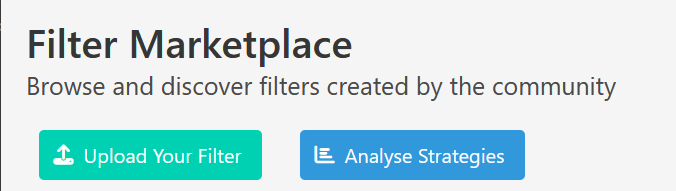
You will see a table of filters shared by other members and two main buttons:
-
"Upload Your Filter" — publish one of your filters.
-
"Analyse Strategies" — open the detailed alert-by-alert breakdown.
-
Understanding the Marketplace Table
Each row represents one shared filter. Key columns include:
| Column | What it tells you |
|---|---|
| Filter Name | The name of the alert filter. |
| Purpose | The market chosen for measuring results, for example "Over 2.5", "BTTS", "FHG". |
| Description | The creator’s explanation of how and when the filter is used. |
| Creator | Who uploaded the filter. |
| Total Alerts | Number of alerts recorded for this filter in the stats period. |
| Success Rate | Win percentage for the chosen Purpose market, with winning bets shown in brackets. Colours are only a quick visual guide. |
| Profit/Loss | Simulated profit or loss using a fixed stake per bet. |
| Total Staked | Total stake across bettable alerts. |
| ROI | Return on investment as a percentage. |
| Last Updated | When the stats were last refreshed. |
| Action | "Add" (copy to your filters) and "Delete" (your own uploads only). |
Tips for Browsing
-
Click column headers to sort.
-
Use filter icons to narrow results by purpose, creator, or other fields.
-
Read the description before copying a filter. Success Rate alone does not tell the full story.
Share Your Filter (Upload)
-
Click "Upload Your Filter".
-
Complete the form:
-
Filter Name — choose one of your saved filters from the dropdown.
-
Purpose — select the main market you want stats shown for, such as Over 2.5, BTTS, Home Win, FHG, SHG, LTD.
-
Description — explain how the filter works and when it typically fires.
-
-
Click "Upload Filter".
After You Upload
-
Stats appear after the next scheduled update. New listings may show "N/A" until data is available.
-
If you see a warning about linking, check that you selected the correct filter name. Incorrect linking prevents others from using "Add".
Click "Cancel" to return without uploading.
Add Someone Else’s Filter to Your Account
If a row shows "Add", you can copy that filter’s logic into your personal filter list.
-
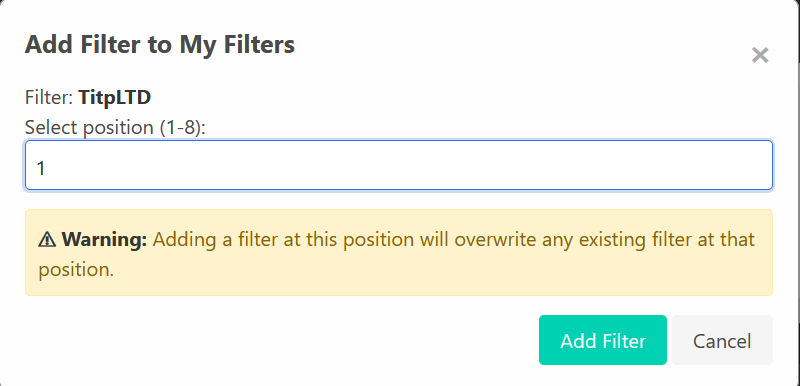
Click "Add".
-
Review the filter name in the popup.
-
Choose a position (slot 1 to your maximum, up to 8 filters).
-
Read the warning: selecting a slot already in use will replace your existing filter.
-
Click "Add Filter" or "Cancel".
Limits
-
Maximum of 8 filters in your set. Remove or replace one if you are already at the limit.
-
"Add" only appears when the filter is fully available for import.
After adding, enable the filter and configure alerts as normal. The marketplace does not change your alert settings.
Remove Your Listing (Delete)
If you uploaded the filter, you will see "Delete" in the Action column.
-
Click "Delete".
-
Confirm when prompted.
You can only delete filters you uploaded. Deleting removes the listing and its stats but does not remove filters already copied by other users.
Analyse Strategies (Detailed Breakdown)
To view every alert behind the stats:
-
Click "Analyse Strategies" or open the strategy breakdown page.
-
Choose a filter from the dropdown.
-
Set Days back (up to 365).
-
Click "Load".
You will see:
-
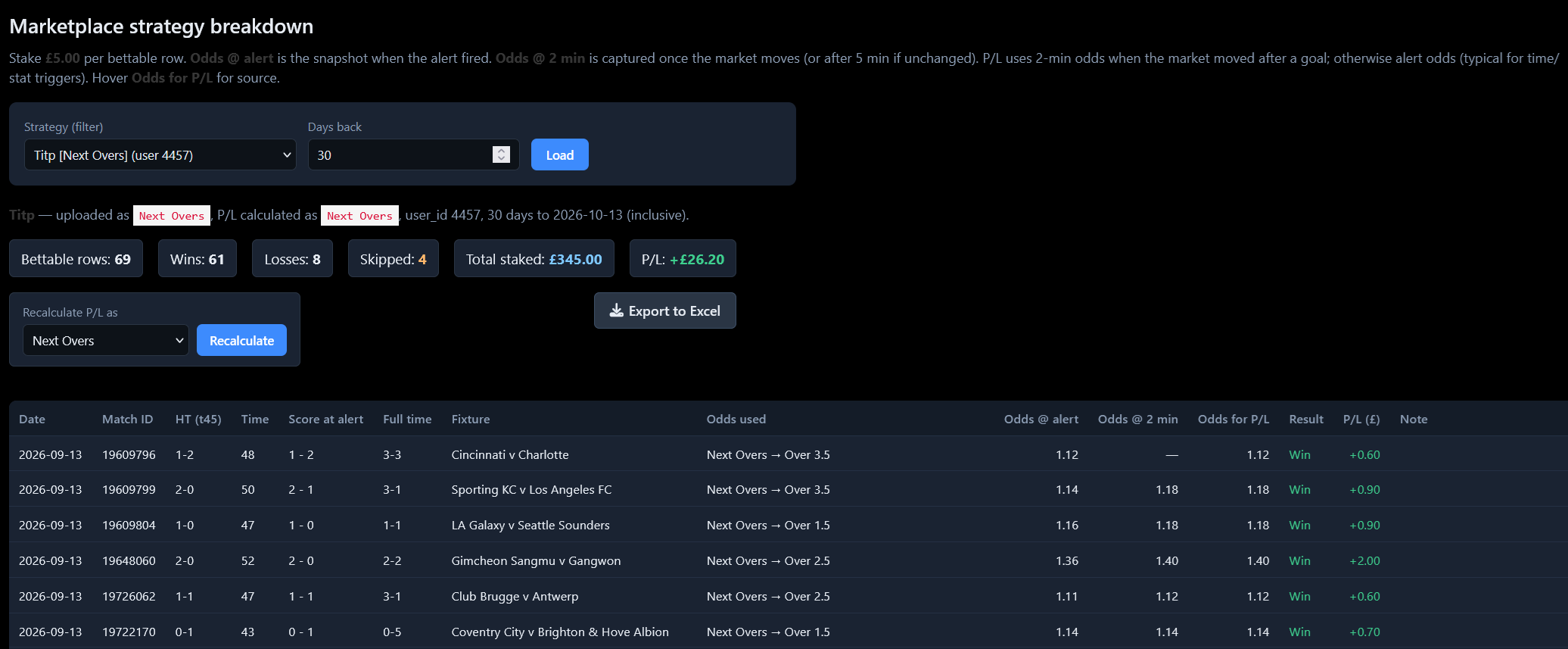
A summary showing wins, losses, skipped rows, total staked, and overall P/L.
-
A detailed alert table with date, match, scores, odds, win/loss, and P/L.
Odds Columns Explained
-
Odds @ alert — price when the alert fired.
-
Odds @ 2 min — price captured shortly after.
-
Odds for P/L — price used for profit/loss. Hover for source details.
Skipped rows are alerts that cannot be scored due to missing data.
Use "Back to Marketplace" to return.
Try a Different Market on the Same Alerts
You can test alternative markets without changing the original listing.
-
Load a filter.
-
Select a new market in "Recalculate P/L as".
-
Click "Recalculate".
The alerts stay the same; only the scoring market changes. The header shows "uploaded as" versus "calculated as" so you know when you are viewing a recalculation.
This does not change the marketplace listing.
Export Your Analysis
-
After loading a filter, click "Export to Excel".
-
A CSV file downloads containing the alert table and summary for your selected date range and purpose.
Frequently Asked Questions
Why is Success Rate or P/L showing N/A?
There may be no stats yet, no alerts in the period, or not enough data. Check Total Alerts and Last Updated, or try Analyse Strategies with more Days back.
Why don’t stats appear immediately after upload?
Stats update on a schedule. Wait for Last Updated to refresh.
Does the marketplace place bets for me?
No. It only shows historical alert performance.
Will adding a filter give me the same alerts as the creator?
You get the filter rules. Alerts fire on your matches based on your settings.
Can I upload the same filter twice?
You cannot upload two listings with the same filter name.
What does Purpose mean?
It is the market used for Success Rate and P/L on the marketplace table.
Important Reminder
The marketplace disclaimer applies to all stats:
-
Information is for education and analysis.
-
Past performance does not guarantee future results.
-
Only stake what you can afford to lose.
Quick Reference
| I want to… | Do this… |
|---|---|
| Browse filters | Open Filter Marketplace |
| Share my filter | "Upload Your Filter" |
| Copy a filter | "Add" → choose position → confirm |
| Remove my listing | "Delete" on your row |
| See every alert | "Analyse Strategies" → select filter → "Load" |
| Test another market | "Recalculate P/L as" → "Recalculate" |
| Save analysis | "Export to Excel" |